Configure Invoice
To configure an invoice, do these steps:
- Select My-Sub Account from the sidebar menu.
- Click an account in the table to display the account details page.
- Select the Billing & Invoice tab.
- Select the Invoice Configuration option.
- Select a Delivery Method (Email, Postal, EDI).
- Specify the number of days in the Payment Due After Invoice Issue.
- Specify the required VAT percentage.
- Add additional information in the Invoice Text field.
- Specify the Device Cost.
- Select a PDF Invoice Template.
- Select an XML Invoice Template.
- Click Update to save invoice configuration.
NOTE: Any field denoted by an * asterisk is mandatory.
Here is a screen capture of the Invoice Configuration page.
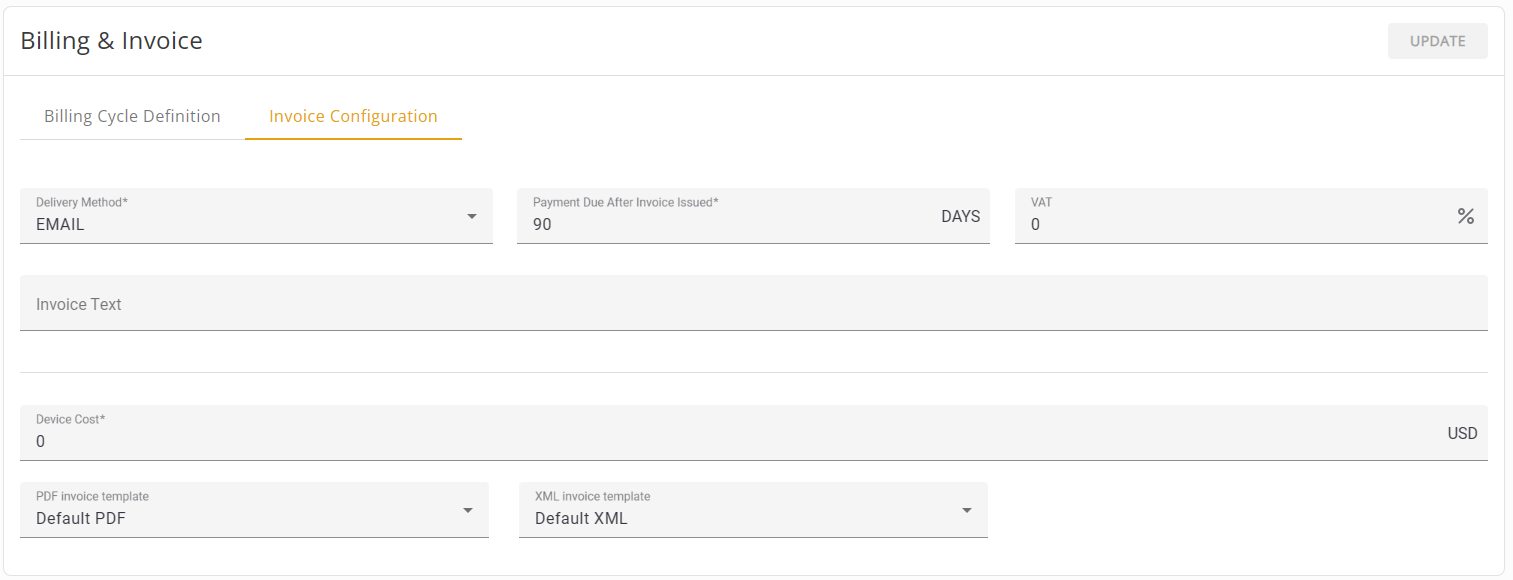
These default invoice configuration parameters are automatically defined when you create a new sub-account.
|
Parameter |
Description |
|---|---|
|
Charge by Active |
The designated Active device determines how the sub-account is being charged per SIM:
Range: IMSI, SIM Default: SIM |
|
Activity Indication |
The sub-account is charged in one of these methods:
Range: Network Registration, Data Activity Default: Network Registration |
|
Device Cost |
The set cost (of ownership or of possession) of the device being charged (apart from usage charged by the Billing Plan) Range: Any integer or decimal value for Currency set in the account. For example: 1 USD, 300 RSD, 0.55327 EUR, 0.07 GBP Default: 0 <Currency set in the Account |